nilbox Store
nilbox Store is an installation helper that handles the complex Linux setup process for you. This document explains the role of the Store, where the actual installation files come from, and how to install apps that are not in the Store.
Can I Install Any App I Need?
Yes, you can. nilbox provides an environment where you can freely install any app you need, not just apps registered in the Store.
- Apps in the Store can be installed simply with one-click installation.
- Apps not in the Store can be installed by entering install commands directly through
nilbox shell.
What is nilbox Store?
Installing a new app on Linux often requires preparing multiple packages in advance due to dependency issues. This process is one of the most challenging parts for users unfamiliar with Linux.
nilbox Store acts as an installation helper that handles this process for you.
- It handles complex preparation steps like dependency installation and environment configuration using automated scripts.
- Users simply find the app in the Store and click the
Installbutton once. - No prior knowledge of Linux commands or package managers is required to install apps.
How It Works
nilbox Store only handles preparing and automating the installation process. The actual installation files are not hosted by the Store.
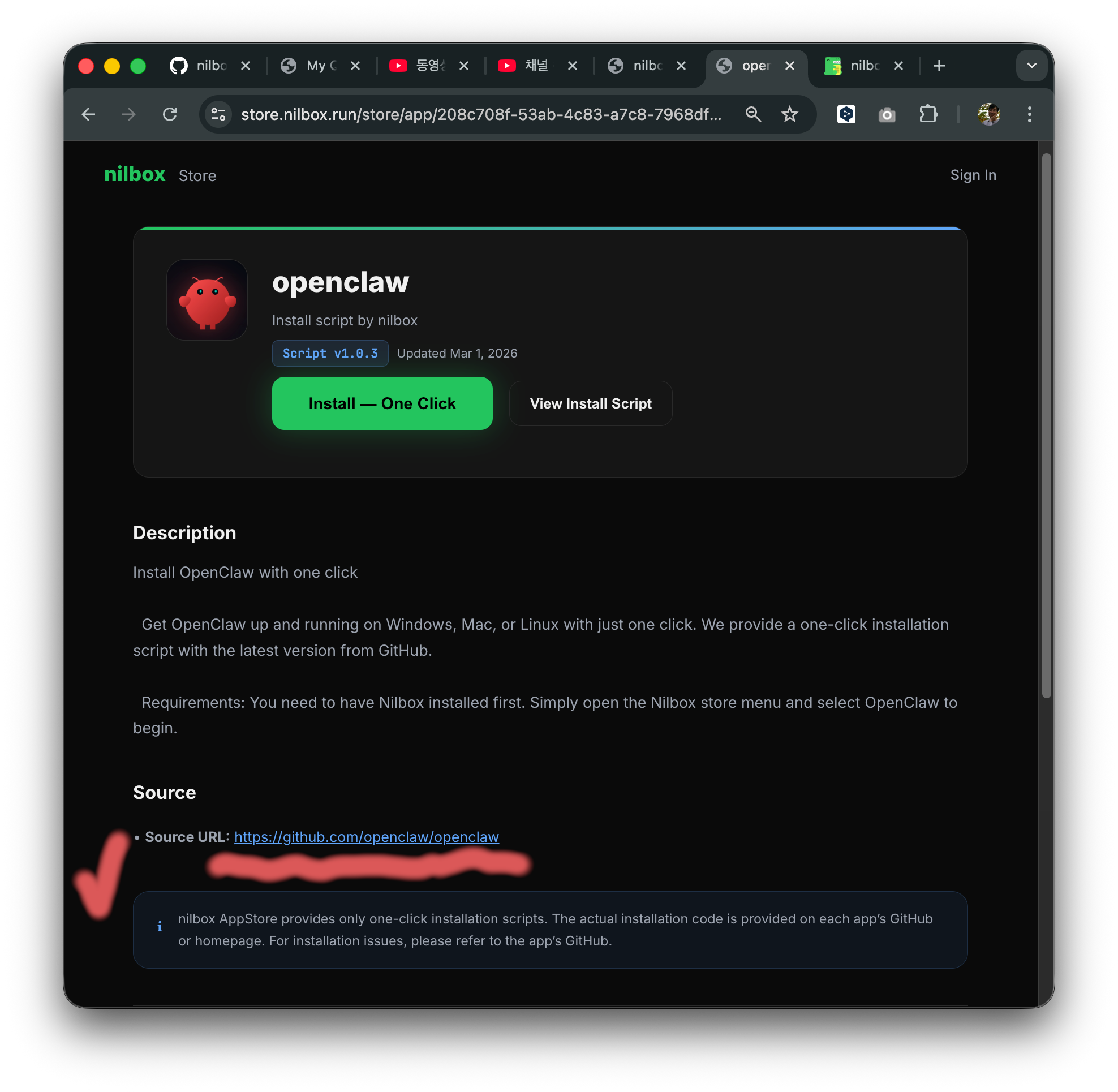
For example, when installing OpenClaw:
- Click the
Installbutton for theOpenClawapp in the Store. - nilbox prepares the dependencies required for OpenClaw installation first.
- The actual installation file is downloaded directly from the
OpenClawofficial website. - The installer runs automatically with the downloaded file.
The installation file that runs when you click the Install button in the Store is not provided by nilbox Store — it is a file downloaded from the app's original provider's website. nilbox Store only provides the installation script that performs that process.
Installing Apps Not in the Store
You can also install apps not in the Store directly. Simply enter the install command through nilbox shell.
Steps
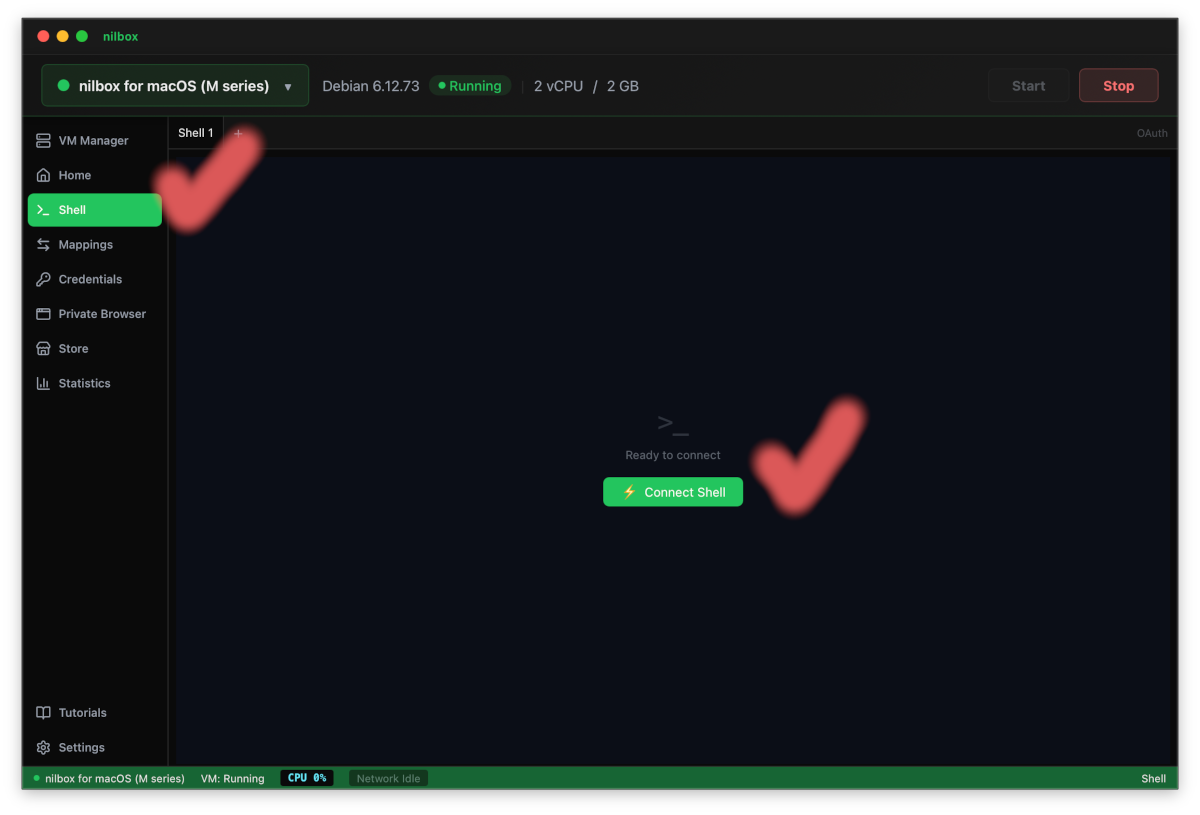
- Select the
nilbox shellmenu from the left sidebar in nilbox. - Click the
Connect Shellbutton to connect to the shell. - Enter the install command for the app you want to install.
Example
For example, to install a Debian/Ubuntu package:
sudo apt update
sudo apt install <package-name>
If you can't find the app you want by searching in nilbox Store, you can install it directly through nilbox shell. Since Linux for nilbox is a standard Linux environment, you can use any install commands that work on that distribution.
Freedom to Install Anything
nilbox is not limited to apps registered in the Store.
- Apps in the Store can be installed easily with one click.
- Apps not in the Store can be installed directly through
nilbox shell. - Install any app you want freely without restrictions and enjoy it to the fullest.
Related Docs
- Installation — Install the nilbox desktop app and
Linux for nilbox - Install Agent — Select
OpenClawfrom the store and run the installer